Nesta página
Not every document starts as a clean digital file. Signed contracts come back as scans, invoices arrive as phone photos, and archives are full of printouts that were never typed. These files contain no real text, only a picture of it, so they need one extra step before they can be translated.
This guide covers how that step works and how to get the best result from it.
Why Scans Are Different
A scanned PDF or a photo stores pixels, not characters. Before anything can be translated, the text has to be recognized from the image. This is called OCR (optical character recognition).
OCR does two jobs at once:
- Reading the text: turning shapes on the page into letters and words.
- Reading the layout: working out which lines belong to the same paragraph, where a table starts, and which text is a heading, a caption, or a footnote.
The second job matters as much as the first. If the layout is read wrong, the translation can be accurate and still come out in the wrong order.
How to Tell If Your PDF Is a Scan
Open the PDF and try to select a word. If you can highlight it and copy it, the file already contains text. If the whole page highlights as one block, or nothing highlights at all, the page is an image and its text has to be recognized.
You don't need to run OCR yourself: Anytranslate recognizes text automatically in every PDF and image you upload. Some PDFs mix both, with typed pages and a few scanned annexes at the end, and those work too. Knowing which pages are scans tells you where image quality matters most.
Getting a Good Scan
The quality of the translation depends on the quality of the image. A few habits make a big difference:
- Scan at 300 DPI or higher. Lower resolutions blur small print, footnotes, and table numbers.
- Keep the page flat and straight. Curved book pages and tilted photos cause lines to merge or split.
- Use even lighting. Shadows across the page and glare on glossy paper hide letters.
- Crop to the page. Desks, fingers, and backgrounds add noise around the edges.
- Prefer a scanner app over a plain photo. Most phone scanner apps flatten, straighten, and boost contrast automatically.
Translating the File
Once the scan is clear, upload it like any other document. PDFs and images (such as JPG or PNG files) both work, and you can choose several target languages at once.
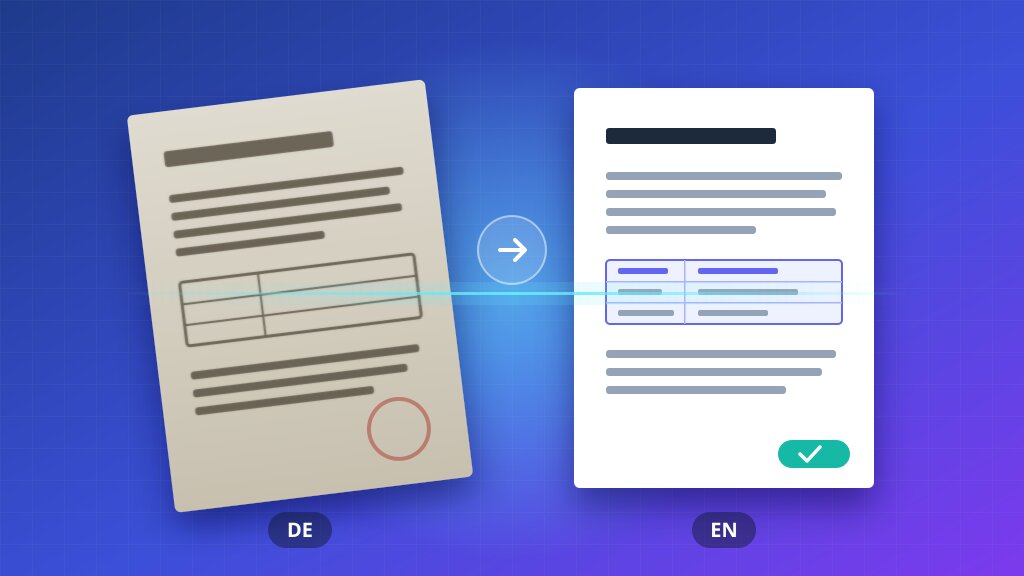
The translated file keeps the structure that was recognized on the page: headings stay headings, tables stay tables, and paragraphs stay in reading order. For how layouts survive translation, see How to Translate a PDF Without Losing Its Layout.
What to Review Afterwards
OCR is very good on clean print, but scans are never perfect. Before you share a translated scan, check:
- Numbers and dates. A misread digit in an amount or a deadline changes the meaning.
- Names and references. Company names, case numbers, and product codes should match the original exactly.
- Tables. Make sure each value is still in the right row and column.
- Faint or damaged areas. Old photocopies and fax pages are where errors show up first.
- Handwriting and stamps. Margin notes and stamps over text are read less reliably than print.
For legal, medical, or official documents, have a native speaker review the result before it is used.
Wrapping Up
Scanned documents and photos do not have to be retyped before they can be translated. Start from a sharp, straight, well-lit image, let the text and layout be recognized together, and review the details that matter most. The result is a translated document that reads naturally and still looks like the original.