On this page
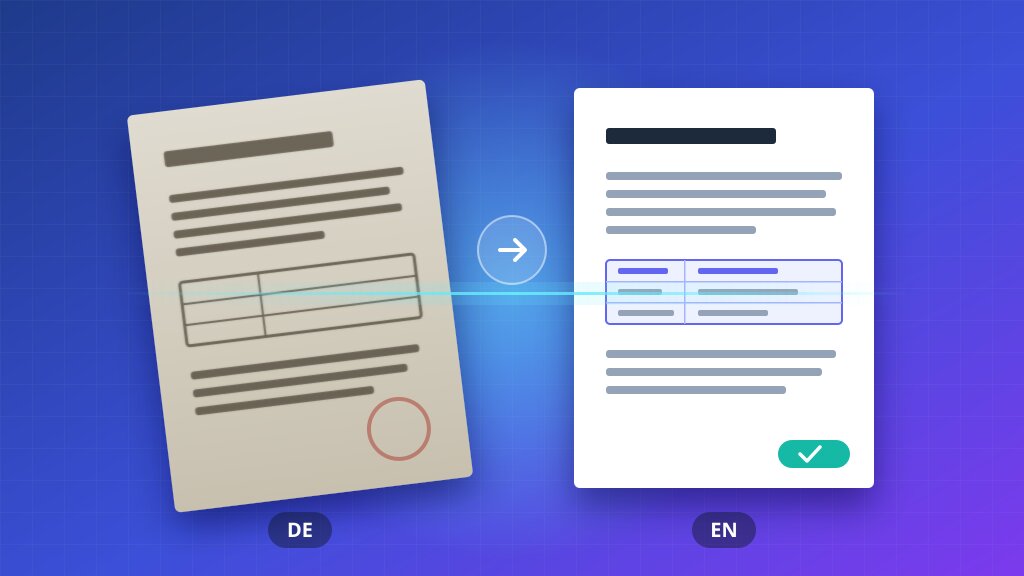
When PDF translation is not working, the cause is almost always one of five problems: the layout changes, some text stays untranslated, pages go missing, tables lose their alignment, or a large file fails to finish. Each one has a clear cause and a fix.
Most of them come from the same root: a PDF stores text as small pieces placed at exact positions on a page, not as paragraphs. Tools that treat a PDF like plain text lose that structure. Tools that read the structure keep it.
Quick answer: use a translator that rebuilds the document instead of extracting the text, make sure scanned pages go through text recognition, and translate the whole file in one pass.
Start translating free: 30 free pages, no card required. The original layout is kept.
1. PDF Translation Changes the Layout
What you see: columns collapse into one, text spills out of boxes, fonts change, images move.
Why it happens:
- Translated text is longer or shorter than the original. German and Portuguese often run 20 to 35% longer than English.
- The tool extracts the text, translates it, and pastes it back as a plain flow, ignoring the original positions.
- The original font has no characters for the target language, so a fallback font with different widths takes over.
How to fix it:
- Translate the original Word or PowerPoint file if you have it. Those formats reflow text naturally.
- Use a translator that keeps the document structure instead of one that only returns text.
- Check the densest pages first: forms, multi-column pages, and pages with text inside shapes.
For the full workflow, see how to translate a PDF without losing its layout.
2. PDF Translation Leaves Text Untranslated
What you see: most of the page is translated, but some paragraphs, labels, or whole pages stay in the original language.
Why it happens:
- The text is an image. Scanned pages, screenshots, and logos contain pictures of words, not text. A translator cannot read them without text recognition (OCR).
- The text is vector outlines. Some design tools export text as shapes, which look like letters but are not text.
- Mixed pages. A page can hold real text and an embedded scan at the same time, so only part of it gets translated.
How to fix it:
- Try to select the untranslated text with your cursor. If you cannot, it is an image or an outline.
- Run the file through a translator that recognizes text in scans and images. Anytranslate does this on every plan.
- For outlined text, go back to the source design file and export again with real text.
More on this in our guide to translating scanned documents and photos.
3. PDF Translation Misses Some Pages
What you see: the translated file is shorter than the original, or some pages come back blank.
Why it happens:
- The tool has a page limit and silently stops there.
- Some pages are scans while others are text, and the tool skips the scanned ones.
- The PDF has a damaged page or an unusual element that the tool cannot parse.
How to fix it:
- Compare the page count of the original and the translated file before anything else.
- Check whether the missing pages are scans. If they are, see problem 2.
- Open the PDF in a reader and print it to a new PDF. This often repairs damaged pages.
- Split very long files into sections and translate them one by one, then merge the results.
4. Translated PDF Tables Are Misaligned
What you see: cell contents overflow, rows shift, numbers land in the wrong column.
Why it happens: a table in a PDF is often just lines and text placed near each other. Nothing tells a basic tool which text belongs to which cell. When the translated text changes length, it no longer fits the drawn lines.
How to fix it:
- Use a translator that detects table structure, so each cell is translated and resized on its own.
- Keep numbers, codes, and dates untranslated. They should never move.
- Review every table in the final file, cell by cell, before you share it.
| Check | What to look for |
|---|---|
| Cell text | Nothing cut off or overlapping the borders |
| Numbers | Same values, same columns as the original |
| Headers | Translated, still above the right columns |
| Totals | Still lined up with the rows they sum |
5. PDF Translation Fails on Large Files
What you see: the upload stops, the translation never finishes, or you get a size error.
Why it happens:
- Many free tools cap the file size or the number of pages.
- High-resolution images make a PDF much heavier than its page count suggests.
- Browser-based tools can time out on long documents.
How to fix it:
- Compress the images in the PDF. Most PDF readers have a "reduce file size" option.
- Remove pages you do not need translated, like covers, blank pages, or appendices.
- Split the document into parts if the tool has a hard limit.
- Use a tool built for long documents that processes the file in the background and lets you download it when it is ready.
Before You Share the Translated PDF
A short final pass catches most issues:
- Same page count as the original.
- No text left in the source language, including headers, footers, and image labels.
- Tables and numbers match the original.
- Names, product codes, and legal terms kept as they should be.
- A native speaker has read anything customer-facing or legal.
Wrapping Up
PDF translation problems look different, but they share a cause: the tool did not understand the structure of the file. Pick a translator that keeps the layout, recognizes text in scans, and handles long documents, and most of these problems disappear.
Try Anytranslate free with your own PDF: 30 free pages, no card required.